FREE GIFT MESSAGES · OPTIONAL PRO WORKFLOWS
Add a gift message to WooCommerce checkout
Give shoppers a clearly labelled place to write a gift message, then make it available with the order. An always-visible gift message works in Cartdini Free on Classic and Checkout Blocks.
Get Cartdini Free Follow the setupCartdini documentation · Product guidance reviewed . Public Free 1.8.16; separately supplied Pro 1.8.15. Recorded examples retain their tested versions and dates. This content review is not a new runtime test.
Choose the simplest workflow that fits
Scroll horizontally to see every column. Keyboard: focus the table, then use the arrow keys.
| Need | Suitable starting point | Boundary |
|---|---|---|
| One general message about the order | WooCommerce’s native order note may already be enough. | It is not a separate Cartdini question. |
| A dedicated gift-message box | Cartdini Free Textarea at Order information. | Always visible while enabled; optional or required. |
| Show the message only for gifts | Cartdini Pro visibility condition using an earlier gift checkbox. | Review both checked and unchecked states. |
| Charge for wrapping | A separate Pro priced choice. | Writing a message does not itself create a charge. |
Set up the Free gift-message field
Work on a staging copy with WooCommerce and Cartdini Free active. Check requirements and use a test or offline gateway for your verification order.
Add a Textarea question.
Open WooCommerce → Cartdini → Extra questions. Add a field, choose Textarea and label it Gift message. Give it a stable field key before the first save.
Keep the answer with this purchase.
Choose Order information for an order-specific gift message. Contact and shared-address locations can also save supported answers to customer accounts, which is usually not the intent for a one-off gift note.
Explain what the shopper should enter.
For example: “Write the message you want our packing team to see.” Set a practical maximum length. Leave Required off if shoppers may order without a message; do not make everyone invent a gift note.
Choose the display destinations.
Review admin order details, customer order details, admin emails and customer emails independently. Save questions & fields explicitly. An unsaved draft or preview does not change checkout.
In Blocks, order questions follow the Order information block. Move that block in the checkout page editor if you need a different section order; Cartdini’s arrows only reorder questions. See the placement guide.
Follow the message into a test order
- Open the real staging checkout and confirm the saved label, help and optional status.
- Submit a harmless fictional message. If you made it required, first confirm an empty answer is rejected, then correct it.
- Inspect the answer on the order and the display destinations you enabled.
- Inspect generated email content separately from actual delivery; a rendered email is not proof it reached an inbox.
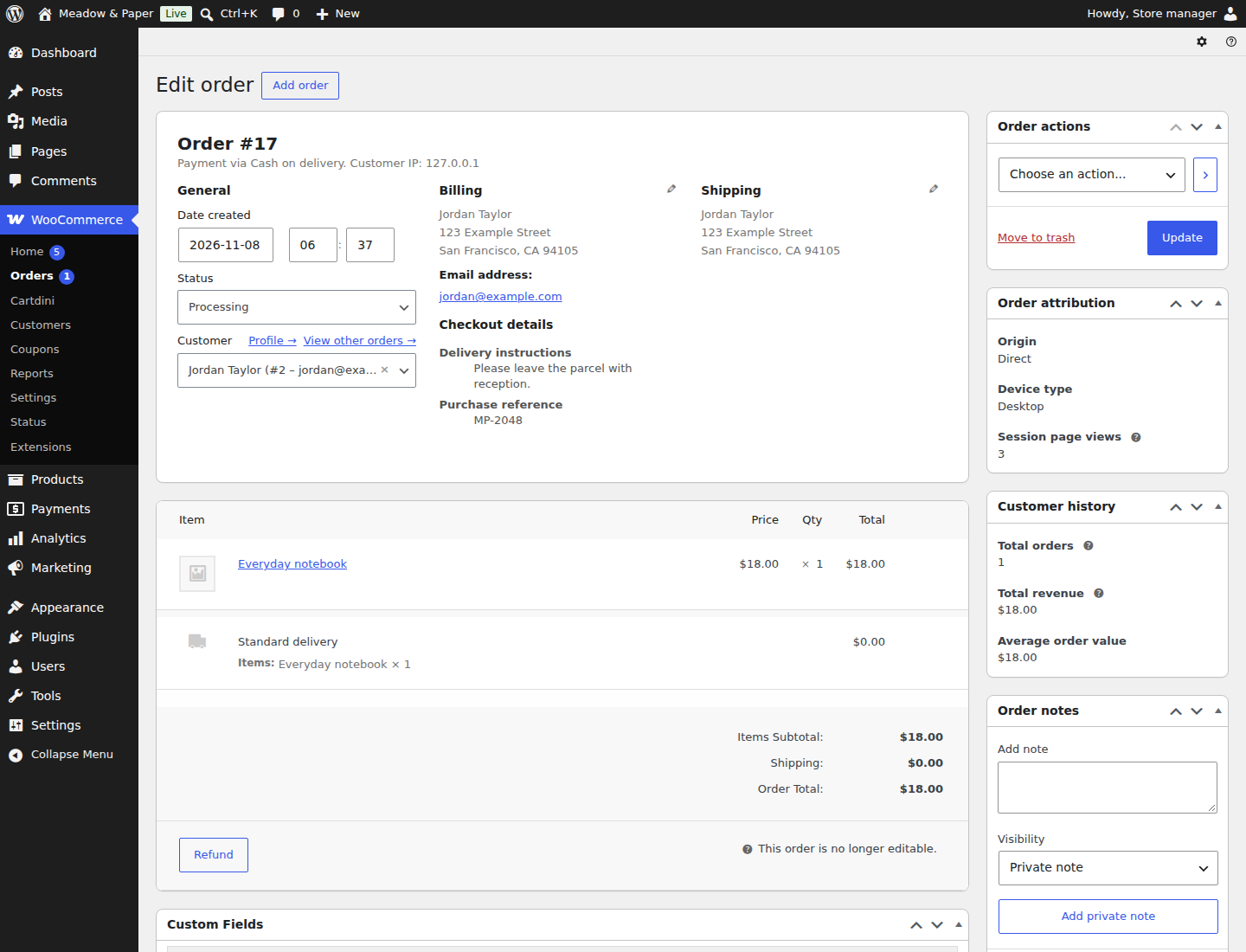
Saving a message does not print or deliver it
Cartdini stores and displays the answer in supported destinations. It does not automatically print a card, transmit the message to a fulfilment service or allocate a different message to every cart item. Your packing process must use the saved answer. A hidden display destination does not erase the stored message, and removing the question retains historical answers.
Need a conditional follow-up? Use the gift-checkbox example in Pro. Need a charge? Follow paid gift wrapping. Need multiple recipients or item-specific personalization? Review order-level versus item-level answers before choosing a structure.
Start with the field, then extend the workflow
Complete Free field walkthrough · Validation examples · Free versus Pro