CARTDINI PRO · PRACTICAL GUIDE
Add paid gift wrapping to WooCommerce checkout
Let the shopper choose gift wrapping and see its fixed charge before placing the order. Cartdini Pro adds the fee to WooCommerce’s order totals; an ordinary checkbox on its own does not change the price.
Follow the steps Compare Free & ProCartdini documentation · Content reviewed for Free 1.8.2 and Pro 1.8.2. Recorded examples identify their tested setup.
Before you start
Use a staging store with Cartdini Free 1.8.2 and Pro 1.8.2 active. Activate your Pro licence through its supported setup screen to unlock editing and tools. Keep Free active. Check your checkout type and compatibility requirements.
Use fictional answers and a test or offline payment method for verification. Review every draft before choosing Save questions & fields; a recipe does not publish itself.
Set the choice and its price
Open the paid gift recipe.
Go to WooCommerce → Cartdini → Workflows and choose Paid gift wrapping. Set your wrapping amount in the shop currency and choose its tax treatment. The recipe also offers a conditional gift message; review whether your store needs it.
Review the priced question.
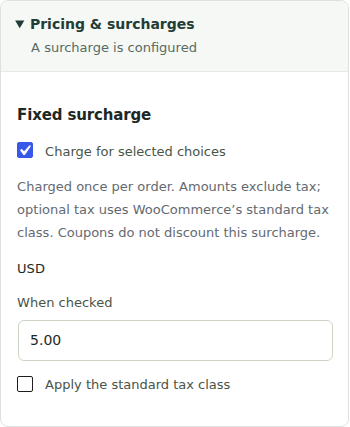
In Extra questions, select the wrapping checkbox. Keep it in Order information. Open Pricing & surcharges and verify the fixed amount for the checked choice. Our isolated example uses USD 5.00 with tax disabled; choose an amount and tax treatment appropriate for your store.
Review the wording and save.
Make the price clear in the label or help text. Review any gift-message condition, existing questions and merge choices, then save explicitly. Selecting a recipe or editing its draft does not apply it to checkout.
See the actual pricing control
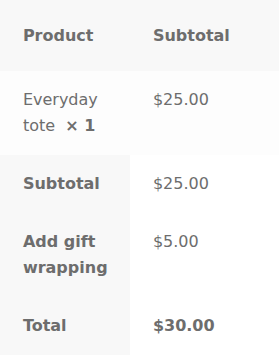
Check the amount through the whole order
- Leave wrapping unchecked: the wrapping fee should be absent.
- Check it: verify the fee appears and the total changes once.
- Uncheck it, then check again: verify removal and reappearance without duplication.
- Place a test order. Open the order and confirm the saved answer, fee and tax treatment. Repeat in each checkout type your store uses.

Check these boundaries before selling
Priced choices require Pro and the order location. Eligible checkbox, select and radio choices support fixed positive amounts; this is not a percentage, discount or per-product formula. Taxable charges use WooCommerce’s standard tax class and tax-exclusive input prices.
A priced choice cannot depend directly or through another question on final totals, shipping methods or payment methods. Currency or decimal-precision changes require review. Refunds are not automatically synchronized to an optional-service workflow.
If fee validation fails, checkout asks the shopper to retry rather than accepting an unchecked price. Test taxes, discounts, currency settings and any checkout extensions on your own store.
How this example was checked
Checked on 28 October 2026 in an isolated fictional store using the public Cartdini Free + Pro 1.8.2 packages, WordPress 7.1.3, WooCommerce 11.2.1, PHP 8.5.4 and Storefront 4.6.2. Settings were saved through Cartdini’s native configuration API; the pictured controls were inspected and the illustrated scenarios were exercised through Classic checkout. The checklists also include store-specific checks for you to perform. Orders used an offline test method, with outgoing email and external requests blocked. No real payment or customer data was used.