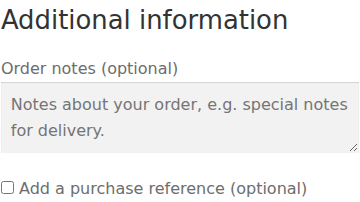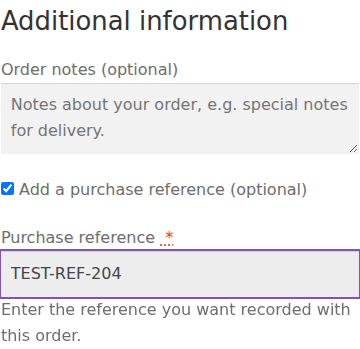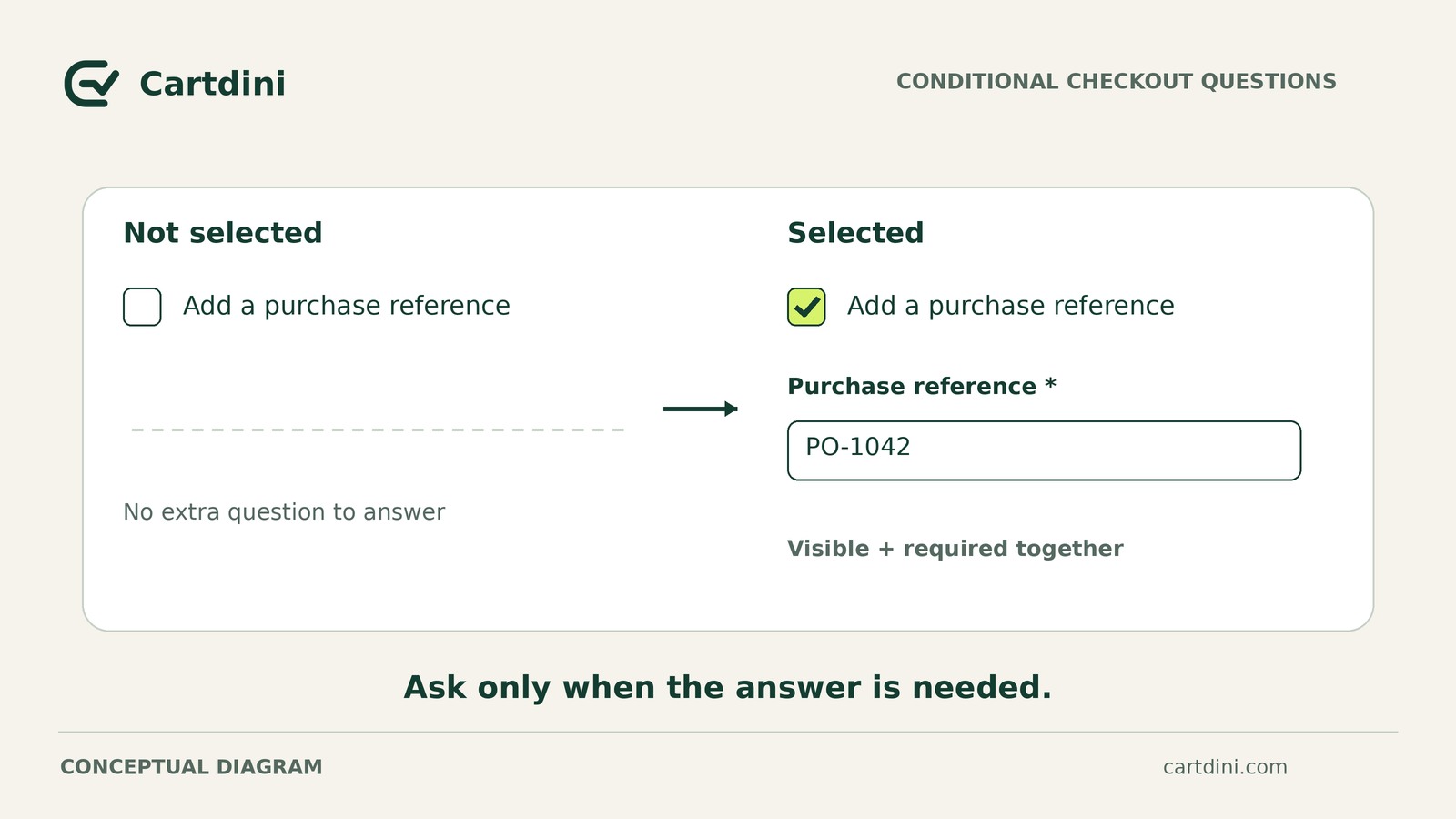
Use an optional checkbox to control both the visibility and the required status of a purchase-reference field. Cartdini Pro supports conditional questions and conditional requirements; Free supplies the checkbox and text inputs but cannot provide these conditions alone.
Shoppers who leave the box unchecked can proceed without a reference; those who check it must enter one. Verify this on staging—a test copy of your store—including unchecking the box after an error or an entered answer. Do not assume that hiding the field deletes its previous value.
Decide whether shopper opt-in fits your policy
This workflow suits a store where a reference is optional, but shoppers who request one should not submit it blank. It does not enforce a business-account purchasing policy: shoppers can leave the checkbox unchecked.
It does not authenticate or approve a reference, generate an invoice, or choose a payment method. Purchase-order approval or delivery into an invoice system requires a separately verified workflow.
If blank answers are acceptable, one optional Text field in Free is simpler. Alternatively, staff can request a reference through the store’s existing contact process without conditional checkout enforcement.
Prepare the plugin pair on staging
Use Free 1.8.2 with the separately supplied Pro 1.8.2. The documented minimums are WordPress 6.7+, WooCommerce 9.9+ and PHP 8.0+; your WooCommerce version may require newer WordPress or PHP versions.
- On a staging copy, upload the public Free ZIP through Plugins → Add New → Upload Plugin, then activate it.
- Install and activate Pro afterward, keeping Free active. Annual Pro subscriptions are available, with protected downloads in eligible accounts.
- Open WooCommerce → Cartdini and check the detected checkout implementation. Fresh activation adds no sample questions; configure and save deliberately.
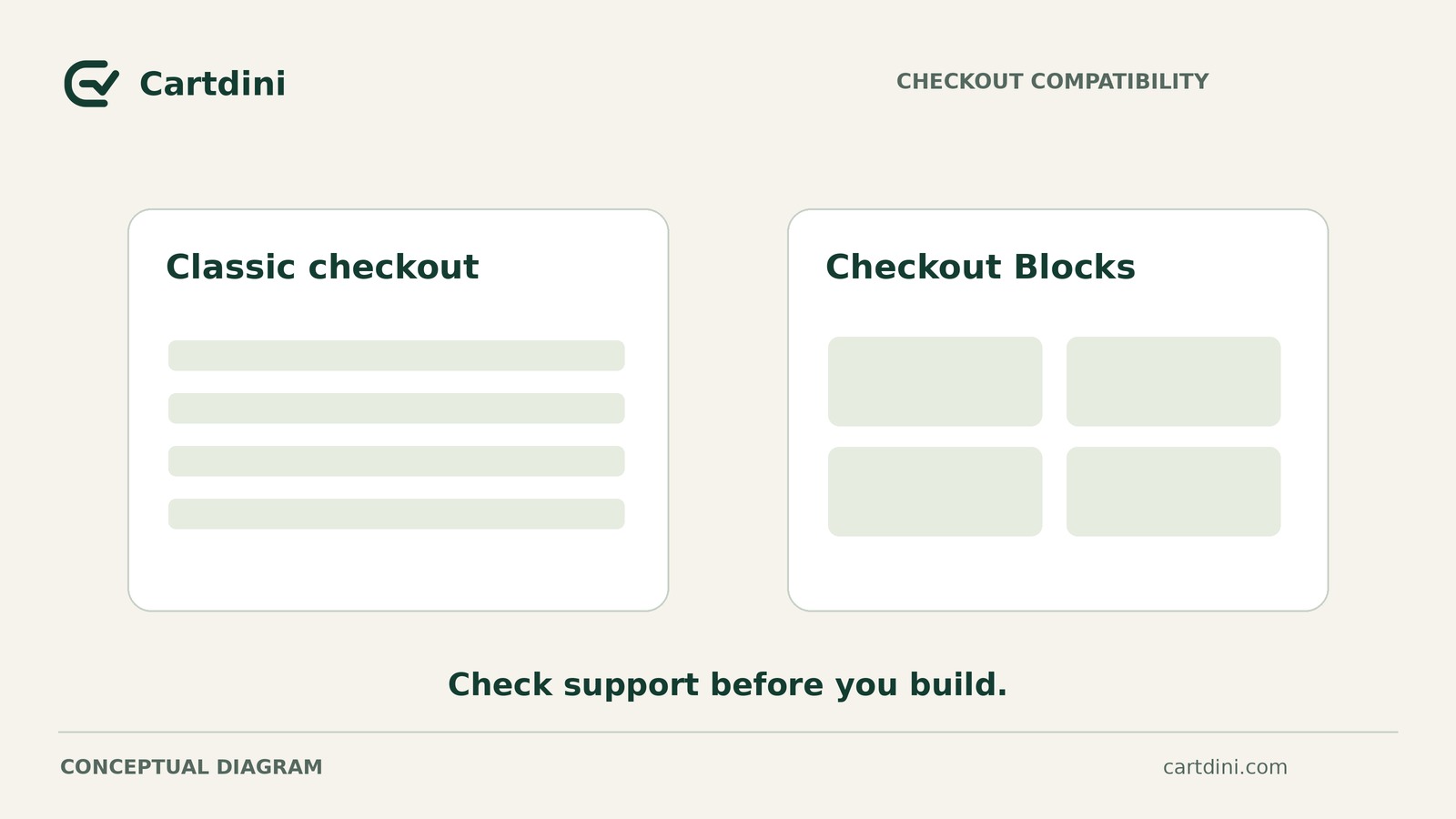
Conditional questions and requirements are documented for Classic and Blocks. In Blocks, expanded conditions use the plugin’s registered integration with server validation on WooCommerce 9.9+. Reused workflows on WooCommerce’s native additional-fields path retain older limits. Review editor warnings and the compatibility guide before relying on an older setup.
Configure the two-field workflow
This two-field configuration was checked on 28 October 2026 with Cartdini Free and Pro 1.8.2 in an isolated Classic checkout. It collects one reference for the whole order. The dated test record below covers guest checkout; repeat it for your own store.
1. Create the optional checkbox. In Extra questions, add a Checkbox labelled “Add a purchase reference.” Place it in Order information and keep it optional. Requiring shoppers to check it would defeat the opt-in design.
2. Create the follow-up. Add a Text field labelled “Purchase reference,” also in Order information. Suggested wording: “Enter the reference you want recorded with this order.” Keep both fields together: cross-location field dependencies are not supported.
3. Define visibility and validation separately. Set the text field to appear when the checkbox is checked. Set its conditional requirement to use that same checked-checkbox condition, rather than making it required for everyone. A field appearing or disappearing does not, by itself, prove that validation is correct.
4. Choose answer-display destinations. Each field has four independent controls: administrator orders, customer orders, administrator emails and customer emails. Enable administrator-order display for both fields during testing; choose other destinations only where needed. These controls affect display, not deletion of stored answers.
5. Review and save. Check the two conditions and display settings, then save the configuration. Editor previews help with preparation but do not establish behavior at checkout or replace a real test order.
Record and run all five staging cases
Use synthetic customer details and TEST-REF-204 as the sample reference. Isolate staging from live charges, real recipients and production fulfilment; use the gateway’s test mode. Satisfy unrelated checkout requirements so address or payment errors do not obscure reference validation.
Record this test context once per run: plugin versions, checkout implementation, theme, gateway and guest or signed-in status. Repeat the full run as a guest and a signed-in shopper, using each checkout implementation you intend to support.
For each case, keep a record with these labels:
Case; expected behavior; observed visibility and validation; order ID if created; saved checkbox and reference values; enabled-email observations; pass, fail or unverified.
Inspect saved answers and enabled emails for completed orders. For the intentionally blocked blank-reference attempt, mark order inspection as not applicable unless an order was unexpectedly created; do not invent an order ID for a blocked attempt.
The following outcomes are acceptance criteria to verify, not reported findings. This checklist is an execution aid: it does not test your store or save your evidence.
The last two cases test different transitions. Clearing a validation error does not establish what happens to an entered answer. Inspect the saved order rather than treating a hidden field as evidence of deletion.
Make the launch decision from the evidence
If any acceptance criterion fails or remains unverified, investigate and repeat the affected tests. If an earlier reference remains after deselection and could mislead staff, establish and verify a handling process before launch.
Keep the completed five-case record with the configuration. Use the setup documentation for adjustments, and move the configuration live only after the validation, saved-answer and selected email-display checks are resolved.