CARTDINI PRO · PRACTICAL GUIDE
Collect private artwork with a WooCommerce order
Let shoppers attach a file to their order and keep access restricted to authorized users. Cartdini Pro supports private artwork uploads in Classic checkout and Checkout Blocks.
Follow the steps Compare Free & ProCartdini documentation · Content reviewed for Free 1.8.2 and Pro 1.8.2. Recorded examples identify their tested setup.
Before you start
Use a staging store with Cartdini Free 1.8.2 and Pro 1.8.2 active. Activate your Pro licence through its supported setup screen to unlock editing and tools. Keep Free active. Check your checkout type and compatibility requirements.
Use fictional answers and a test or offline payment method for verification. Review every draft before choosing Save questions & fields; a recipe does not publish itself.
Create an artwork question
Check private storage first.
Your host needs writable storage outside publicly served web roots. If Cartdini reports a storage problem, resolve it before enabling uploads. Do not move private files into the public media library to bypass the check.
Load the artwork recipe.
Go to Workflows → Artwork & instructions. Review the file question and accompanying instructions. Alternatively, add a File question in Extra questions at Order information.
Choose formats and size.
Open File requirements. Select the formats you actually accept and a 1–10 MB limit. Our example accepts PDF, JPG and PNG up to 5 MB. The effective server limit can be lower; JPG/PNG require supported image processing.
Save and test a real sample.
Review required/optional status, instructions and placement, then Save questions & fields. At staging checkout, upload a harmless sample and wait for the ready confirmation before placing the order.
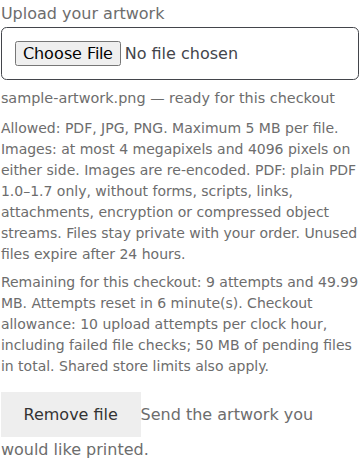
See the actual upload requirements
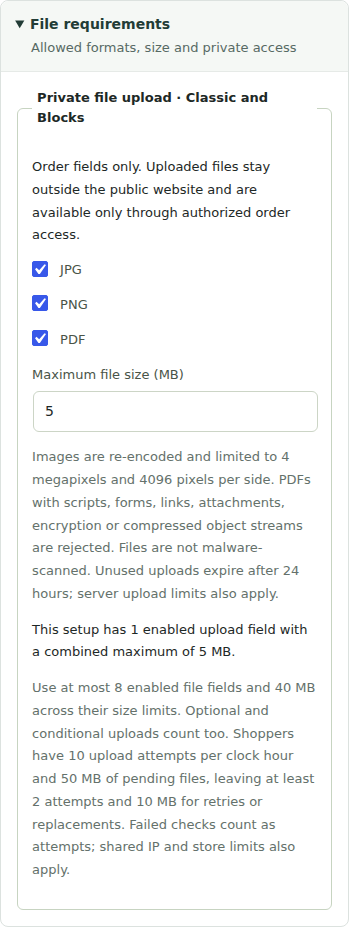
Follow the file into the order
- Upload an allowed file and check the filename and ready state.
- Remove it through Remove file and check that it is cleared. Upload the sample again.
- Place a test order and open the saved file through the authorized order screen.
- Check that an unrelated signed-out visitor cannot retrieve the file. Also test an unsupported format and an oversized file on your staging store.

Private storage does not mean malware scanning
Images are re-encoded within pixel limits. PDFs are restricted plain PDF 1.0–1.7 files: forms, scripts, links, attachments, encryption and compressed object streams are rejected. These conservative checks are not antivirus scanning.
Unused uploads expire after 24 hours. Order attachments follow the plugin’s retention and privacy lifecycle. Keep administrative access limited, follow your store’s privacy policy and verify host cleanup requirements. A filename may itself contain personal information.
Uploads belong at the order location. Repeatable-group child uploads are not supported. Read the full upload limits and storage reference.
How this example was checked
Checked on 28 October 2026 in an isolated fictional store using the public Cartdini Free + Pro 1.8.2 packages, WordPress 7.1.3, WooCommerce 11.2.1, PHP 8.5.4 and Storefront 4.6.2. Settings were saved through Cartdini’s native configuration API; the pictured controls were inspected and the illustrated scenarios were exercised through Classic checkout. The checklists also include store-specific checks for you to perform. Orders used an offline test method, with outgoing email and external requests blocked. No real payment or customer data was used.
Related setup
Ask for files only when the question is relevant · Export selected answers, with filenames only