CARTDINI PRO · PRACTICAL GUIDE
Export selected WooCommerce checkout answers as CSV
Choose the orders and Cartdini questions your team needs, then download a focused CSV. Pro order-answer exports are separate from configuration templates and are generated only when an authorized administrator requests them.
Follow the steps Compare Free & ProCartdini documentation · Content reviewed for Free 1.8.2 and Pro 1.8.2. Recorded examples identify their tested setup.
Before you start
Use a staging store with Cartdini Free 1.8.2 and Pro 1.8.2 active. Activate your Pro licence through its supported setup screen to unlock editing and tools. Keep Free active. Check your checkout type and compatibility requirements.
Use fictional answers and a test or offline payment method for verification. Review every draft before choosing Save questions & fields; a recipe does not publish itself.
Find the orders, then choose the answers
Open order-answer tools.
Open Cartdini’s order-answer tools from the WooCommerce Orders list. The page heading is Put checkout answers to work. Pro must be unlocked for new exports and column changes.
Find a bounded set of orders.
Use Created from, Created through and Order status, then Find answers. Alternatively enter specific order IDs; these replace the date and status filters. Dates use the store timezone.
Review the exact order IDs.
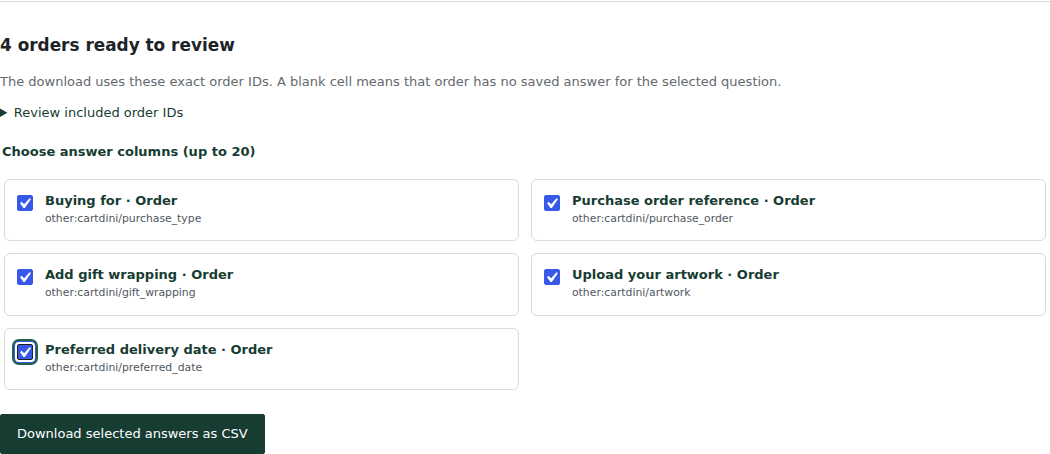
Open Review included order IDs. Choose up to 20 answer columns from the matching orders. Historical answers retain their saved wording even if the question was later renamed or deleted.
Download and inspect the CSV.
Choose Download selected answers as CSV. Verify the selected orders, column headings and sample values before using the file. A blank cell means the order has no saved answer to that question.
Keep a few answers beside the Orders list
In Your Orders-list columns, choose up to three questions and select Save my columns. The preference applies to your administrator account on this store. WordPress Screen Options can hide individual columns. To select a deleted question, first find historical orders containing it.
Check the file without leaking customer data
Our isolated export included the saved wrapping answer, artwork filename, preferred date and business purchase reference from the four illustrated test orders. It contained the selected answers and order identifiers, without the sample billing address or a private upload URL.
- Open the file with the correct UTF-8 encoding and inspect headings and rows.
- Confirm filenames appear for uploads; private file links must not be included.
- Confirm repeatable groups stay together in one cell.
- Keep the downloaded CSV private. Answers can include customer-entered personal information even though billing addresses and payment details are not added automatically.
Keep exports small and purposeful
Each export supports up to 100 placed orders, up to 20 questions and 8 MB. Checkout drafts, trash and refund records are excluded. Narrow the selection when limits are reached. This is not a scheduled integration or a complete WooCommerce order export.
If an order or your access changes during preparation, refresh and review the selection again. Cartdini does not keep a server-side CSV history; protect and remove your downloaded copies according to your retention policy.
How this example was checked
Checked on 28 October 2026 in an isolated fictional store using the public Cartdini Free + Pro 1.8.2 packages, WordPress 7.1.3, WooCommerce 11.2.1, PHP 8.5.4 and Storefront 4.6.2. Settings were saved through Cartdini’s native configuration API; the pictured controls were inspected and the illustrated scenarios were exercised through Classic checkout. The checklists also include store-specific checks for you to perform. Orders used an offline test method, with outgoing email and external requests blocked. No real payment or customer data was used.
The CSV was downloaded through the real authenticated WordPress form and checked against the four offline test orders. The administrator’s column preference was also saved through its normal form.
Related setup
Order tools reference · Transfer a field configuration instead