CARTDINI FREE · NATIVE FIELD CONTROLS
Edit existing WooCommerce checkout fields
Change supported address labels, field order and optional-field settings without confusing them with new checkout questions. Classic and Checkout Blocks expose different native controls.
Get Cartdini Free Compare the controlsCartdini documentation · Product guidance reviewed . Public Free 1.8.16; separately supplied Pro 1.8.15. Recorded examples retain their tested versions and dates. This content review is not a new runtime test.
Existing fields and extra questions are separate jobs
Use WooCommerce → Cartdini → Existing checkout fields for supported WooCommerce address, native field and button settings. Use Extra questions to collect a new gift message, purchase reference or other custom answer. Saving one configuration does not automatically save the other.
If your main problem is where a question appears within the Checkout block, follow the Blocks placement guide. This page focuses on changing native fields, not moving checkout sections.
Which controls apply to each checkout?
Scroll horizontally to see every column. Keyboard: focus the table, then use the arrow keys.
| Task | Classic | Checkout Blocks |
|---|---|---|
| Company, Phone and Address line 2 visibility/requirements | Shared settings can apply; explicit Classic overrides take precedence. | Supported shared settings. |
| Supported address labels and order | Shared presentation plus supported Classic overrides. | Ten shared address keys; country-specific rules remain native. |
| Native placeholders | Supported Classic overrides. | Blocks address placeholders stay controlled by WooCommerce. |
| Contact email or checkout sections | Use only the supported Classic controls shown in the editor. | Contact email and section content remain native; move blocks in the page editor. |
| Default Place Order wording | Do not assume the Blocks setting changes the Classic button. | Supported; gateways or other extensions may supply their own text. |
The six supported Classic optional-field keys are billing company, billing address line 2, billing phone, shipping company, shipping address line 2 and order comments. Only fields currently supplied by WooCommerce appear. Essential address/email requirements are not generally removable; check the complete compatibility matrix.
Make one change and verify its scope
Record the starting state.
Use staging and note your checkout layout, current shared settings and any Classic overrides. Test with a country and cart that reflect your store.
Change the intended native setting.
For example, set Company to Optional rather than Hidden, or review a supported address label. A draft dropdown change does not affect checkout until you use that section’s save action.
Save and reload the actual checkout.
Check both layouts if your store exposes both. Review guest and signed-in shoppers, separate shipping addresses and countries with different native requirements.
Use the individual reset when appropriate.
Review the reset result and save it explicitly. Do not replace an entire custom-question configuration to undo a native-label change.
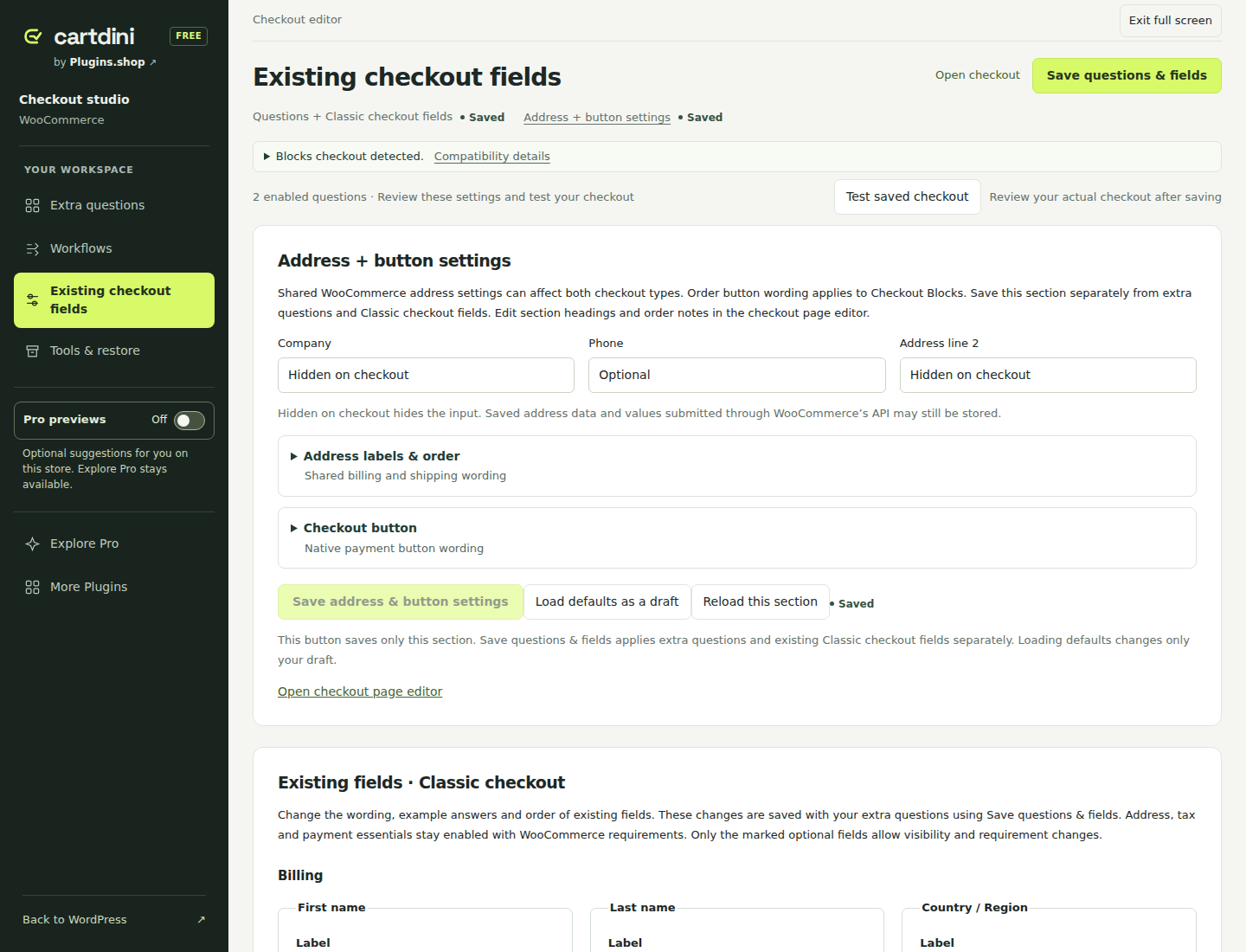
Hidden on checkout does not mean erased or rejected
A shared native visibility setting hides an input. WooCommerce can still retain existing customer address data or accept native address values sent through its API, including on the shopper’s own order and saved address. Cartdini does not turn this setting into a data-erasure or server-rejection rule.
Use the store’s privacy and retention processes for erasure. Cartdini custom questions have their own controls. Native address/button settings are not included in custom-field templates, transfers or restore history, so record them separately before making broad checkout changes.
Related setup
Add a new custom question · Understand Blocks placement · Troubleshoot a missing field